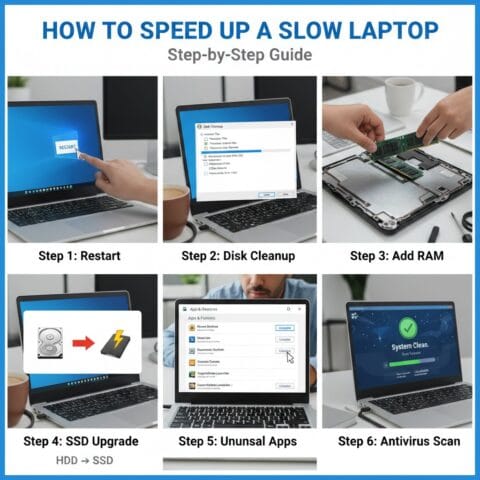
How to speed up a slow laptop is something you want to know when your computer takes ten minutes just to open a web browser. You press the power button, walk away to make coffee, and come back to a frozen screen that refuses to let you type your password.
The short answer is that your computer probably has too many startup programs running, a full hard drive, or too little working memory. You can fix most of these issues in less than thirty minutes without spending any money on new parts.
Why Is Your Laptop Running So Slow?
Computers get sluggish over time because background tasks pile up. Every time you install a new app, it often sets itself to start running the moment you turn on your machine. You might have ten different programs checking for updates right now, even though you only open them once a month.
My old work laptop started taking forever to load simple files last year. I opened the task manager and found twenty background apps running silently. Closing those apps made the machine feel brand new again. You can read more about keeping devices running smoothly in this Smartphone Battery Life Guide for 2026, because the same rules apply to how power and speed work together on modern gadgets.
Another major culprit is storage space. If your main drive is ninety-nine percent full, the operating system has no room to breathe. Computers use a small slice of permanent storage as temporary working space when your memory gets full. When that space is gone, your computer crawls at a snail's pace.

How to Clear Out Startup Apps and Free Up Memory
Stopping unnecessary programs from launching at startup is the fastest way to get your speed back. On Windows, you press control, shift, and escape to open the task manager. Click on the startup tab to see every program that launches automatically.
You will likely spot things like chat apps, music players, and cloud storage tools you rarely use. Right-click the ones you do not need right away and choose disable. Do not worry, because this just stops them from opening on their own. You can still open them manually whenever you want.
Mac users go to system settings, click general, and then select login items. You can remove extra apps from that list just as easily. If you want a fun look at how older systems managed tasks compared to today, check out this page on Inspector Gadget for some nostalgia about fictional tech that always worked instantly.
Memory management matters just as much as startup apps. If you keep fifty browser tabs open at the same time, your computer runs out of memory. Try using browser extensions that put old tabs to sleep until you click them again. This simple trick saves gigabytes of memory instantly.
How Do You Clean Up Storage Space?
Clearing out old files gives your computer room to move data around quickly. Most operating systems have built-in storage tools that find junk files for you. Look for disk cleanup on Windows or storage settings on a Mac to see what is taking up all your gigabytes.
Movies and large photo libraries take up massive amounts of room. Move those files to an external hard drive or put them in cloud storage. Empty your trash bin afterward, because files stay on your drive and waste space until you empty that bin.
Uninstaller tools help you get rid of old programs completely. Sometimes deleting a shortcut leaves behind gigabytes of hidden data. Use the official settings menu to remove apps properly so they leave no trace behind on your drive.

Clearing out old files gives your computer room to move data around quickly.
Should You Buy More RAM or a New Hard Drive?
Hardware upgrades can rescue an older machine that software tricks cannot fix. Traditional spinning hard drives are notoriously slow compared to modern solid-state drives. Swapping an old hard drive for a solid-state drive makes a night and day difference in speed.
Solid-state drives have no moving parts, so they load files almost instantly. You can buy a decent one for a small amount of money, and it feels like buying a brand new computer. You can also explore how consumer tech trends make these parts cheaper and easier to install yourself.
Adding more memory helps if you like to run heavy programs like photo editors or video games. Check your laptop manual to see if you can open the case and pop in a new memory stick. Many modern laptops have soldered parts, but older models let you upgrade easily.
Sometimes hardware gets too old to handle modern websites. If your processor is ten years old, no amount of cleaning will make it run fast on heavy web pages. Knowing when to replace a device is just as important as knowing how to fix it, which you can learn more about in this Smartphone Battery Life Guide for 2026.
What Is the Best Way to Keep Your Laptop Fast?
Keeping a computer fast requires a little bit of regular upkeep. Do not wait until your machine crawls to a halt before you do maintenance. Set a reminder to check your storage and startup apps every few months.
Keep your operating system and browser updated. Updates often include performance fixes that make your machine run smoother and use less power. For a broader look at how technology evolves to solve these exact speed problems, read this overview of Technology Connections.
Here are three quick tips you can use today to keep your laptop running smoothly:
- Restart your computer once a week instead of leaving it in sleep mode constantly. This clears out temporary memory leaks.
- Close browser tabs you are not actively reading to free up valuable system memory.
- Run a virus scan once a month to catch hidden malware that might be slowing down your processor in the background.
Taking care of your computer means it will last longer and frustrate you less. You do not need to be a computer genius to keep things running at top speed. Check out more helpful tech tips on our site to get the most out of your everyday devices.
How to Manage Temperature to Avoid Throttling
Heat is a hidden enemy that slows down your processor without any warning. When your computer gets too hot, it automatically slows down its operational speed to protect internal circuits from permanent damage. This safeguard is called thermal throttling, and it makes simple tasks feel agonizingly sluggish.
Fans accumulate dust over time, which blocks the airways designed to push heat out of your machine. You can clear this dust using a cheap can of compressed air blown directly into the side vents. Always place your computer on a flat wooden desk or table instead of a soft bed or couch cushion, because fabric blocks air intake holes on the bottom.
When Should You Perform a Factory Reset?
A fresh operating system installation cleans up years of hidden software junk in one single step. If you tried every tweak and your system still lags, wiping the storage drive offers a fresh starting line. Modern systems make this process very simple through built-in reset buttons in your settings screen.
Make sure you copy all your important personal photos and documents to an external flash drive before you begin. The computer reboots several times and reinstalls a pristine version of the software, leaving behind all corrupted registry files and ancient background utilities.
- Back up all your passwords, photos, and files to an external disk first.
- Use the soft reset option that keeps your personal files if you feel nervous about deleting everything.
- Reinstall only the software tools you actually need right away after the reboot finishes.